How to install Ultrebo on Android
Ultrebo is installed from a file (an APK) instead of an app store. It takes about five minutes the first time. On a computer? See the PC page.
You need an Android phone running Android 8.0 or newer. iPhones can't run it, because iOS doesn't let apps tap other apps.
1. Download the APK
- On your phone, open the latest release page.
- Scroll to Assets and tap
Ultrebo-v….apk. The file is about 60 MB. - If your browser warns that this type of file can harm your device, that is Android's standard message for any app installed from a file. Choose to keep it.
2. Allow installing from your browser
The first time, Android asks whether your browser (or Files app) may install apps. Tap Settings, switch on Allow from this source, then go back and tap Install. You can switch the setting off again afterwards.
3. Open Ultrebo and follow the Get started guide
When you open the app, a Get started card on the home screen walks you through the permissions. It checks each one for you and disappears once the required ones are on.
- Accessibility service (required). Tap Open accessibility settings, find Ultrebo under Installed apps or Downloaded apps, turn it on, and tap Allow. This is what lets Ultrebo perform your taps and swipes.
- If the switch is greyed out or says "Restricted setting". On Android 13 and newer, Android blocks apps installed outside the Play Store until you allow it once. Open Settings > Apps > Ultrebo, tap the three dots at the top right, choose Allow restricted settings, and confirm. If you don't see that option, first try switching the service on once so Android shows the restricted message, then come back. The guide has an Open app info button for this.
- Notifications (Android 13 and newer). Tap Allow notifications. Android requires a visible notice while screen capture is on.
- Screen capture (optional). Only needed for image and text steps. Tap Grant screen capture and accept Android's prompt. Android asks again each time Ultrebo restarts.
Why each permission is needed is explained on the permissions page.
4. Make your first macro
- Tap New macro, then open it.
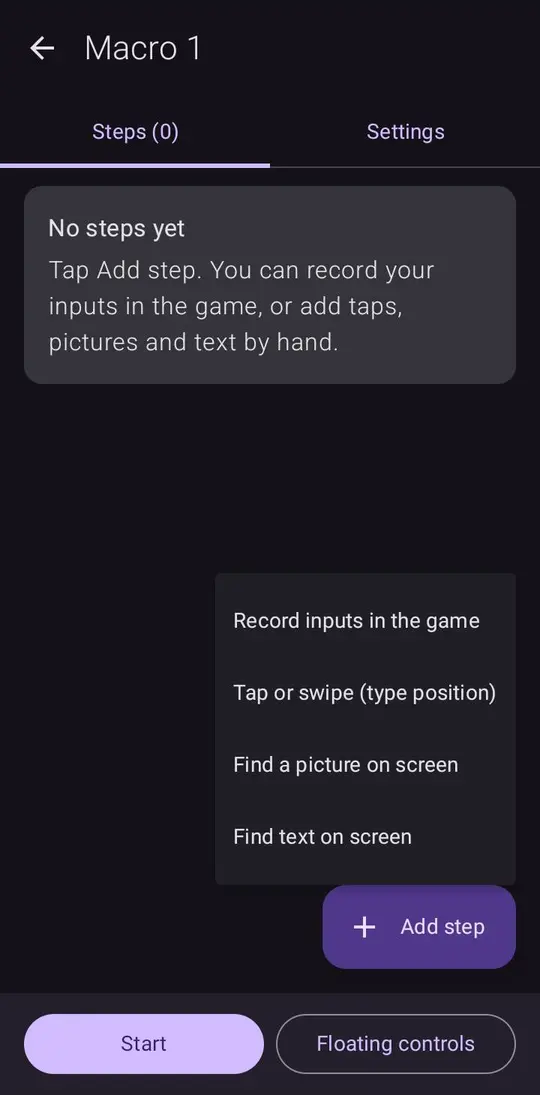
- Tap Add step and choose Record inputs in the game. A small floating bar appears on top of your screen.
- Open your game, press REC, play the taps and swipes you want, then press DONE.
- Back in Ultrebo, tap a step to change its position or delay. Use the three dots on a step to test, move or delete it.
- Press Start at the bottom (or RUN on the floating bar). Press STOP to end it.
Updating
When a newer version exists, Ultrebo shows an Update available message. Tap Update now and Android asks you to confirm. Your macros stay. You can switch the check off in the app's About screen.
Common problems
The accessibility option is greyed out
Allow restricted settings for Ultrebo (step 3 above), then try again.
Taps land in the wrong place
Re-record after changing screen rotation or display size. Positions are absolute screen coordinates.
An image is never found
Re-crop it, lower the match threshold (try 0.75), and make sure screen capture is on.
The macro stops by itself
Android may have switched the accessibility service off, as some battery savers do. Turn it on again and exclude Ultrebo from battery optimisation.
I'm stuck
Join the Discord server and open a support ticket. Say your phone model and Android version.